TitleNews Magazine
View All IssuesMay 2026
Volume 105, Issue 5
April 2026
Volume 105, Issue 4
March 2026
Volume 105, Issue 3
February 2026
Volume 105, Issue 2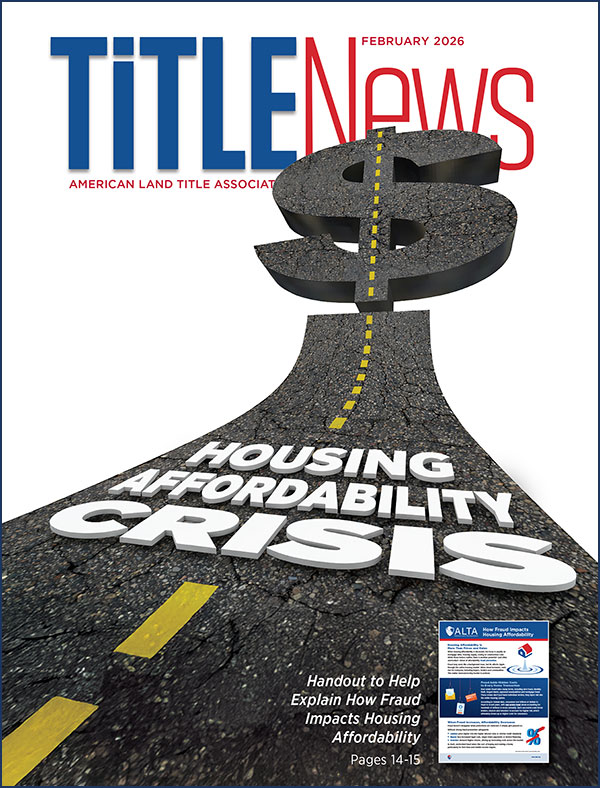
January 2026
Volume 105, Issue 1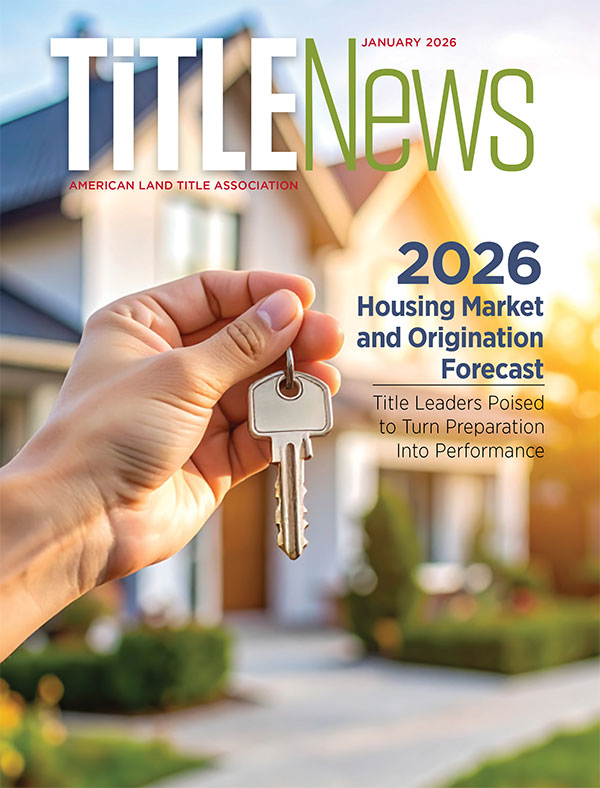
December 2025
Volume 104, Issue 12
November 2025
Volume 104, Issue 11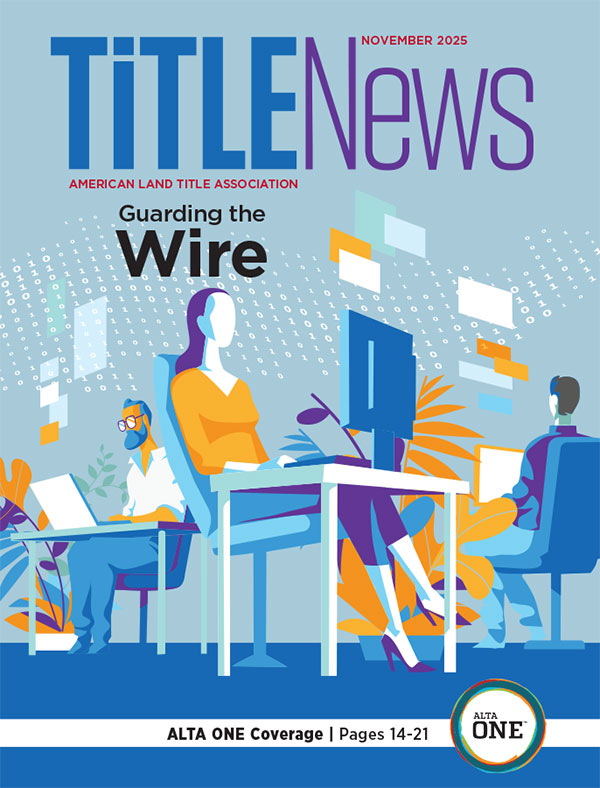
October 2025
Volume 104, Issue 10
September 2025
Volume 104, Issue 9
August 2025
Volume 104, Issue 8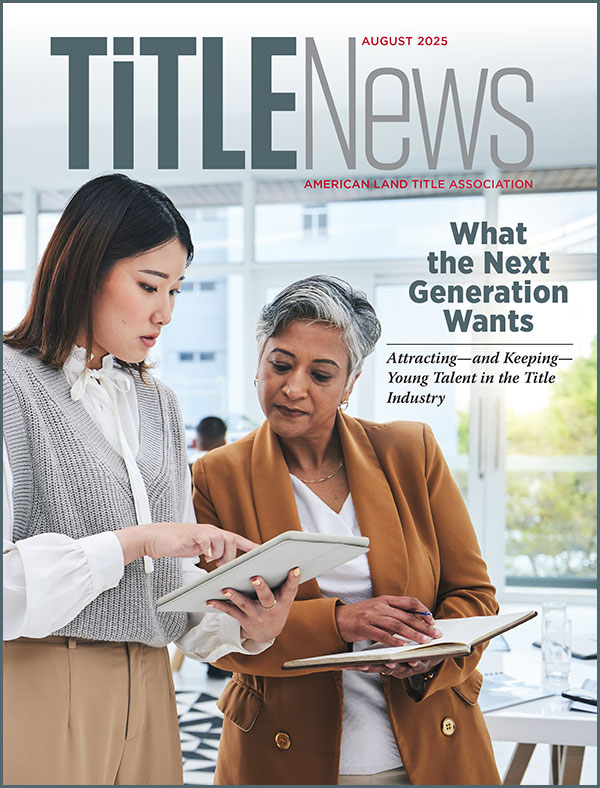
July 2025
Volume 104, Issue 7
June 2025
Volume 104, Issue 6
Digital News & Analysis
Update Your Email Preferences
Advocacy Update
This weekly email gives ALTA members up-to-date information on ALTA's legislative efforts on Capitol Hill and around the United States.

TitleNews Online
Twice a week, the top stories impacting the title industry are brought to you by email. This e-newsletter strives to provide timely industry updates that you need to maintain a competitive edge in the marketplace.

News You Can Use
This daily email provides a collection of headlines from various media sources about issues impacting business and the real estate and mortgage markets.
Non-member Subscriptions
Non-members may purchase subscriptions for an additional fee. A login is required for all purchases and subscriptions. To receive login information, you can create an account online, send an email to [email protected] or call 800-787-2582.

TitleNews Magazine
Stay ahead of the industry with TitleNews, ALTA's flagship publication featuring expert analysis, emerging trends, regulatory updates and practical insights for title and settlement professionals.
TitleNews Magazine Archive

Questions? Contact Us!
ALTA’s Communication Staff is here to serve you. Please direct any questions concerning ALTA publications to [email protected].